
1. From your agent dashboard or the Tickets tab select the ticket.
2. Click the open ticket.
3. It automatically lands on the Logged Work tab of the ticket's middle menu.

4. From the action section of the middle menu, select the icon.
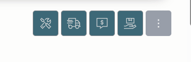
Use the tools icon to add work, the truck icon to add mileage, the money icon to add expenses, and the POS icon to add goods or services to the ticket.
5. For mileage and labor, use the sliders to indicate start and stop times for each selected date and destination.

6. Select Submit to add it to the ticket's activity log.
7. For expenses, select the add expense button from the action menu.
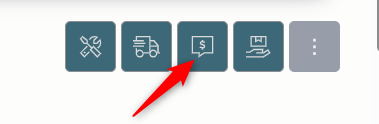
8. Select the expense type and choose from the dropdown.
9. Type in the cost.
10. Select media (pictures, receipts, invoices, etc.) to add to the expense log.
11. Include a description of the expense.
12. Select Submit to add the expense to the ticket's activity log.
13. To add products with the POS function, choose the POS button.
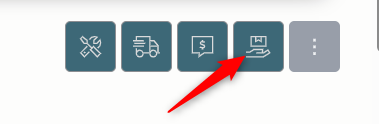
14. Select the product from the dropdown, these select from the customer's pricebook.
15. Enter the quantity in the field.
16. Choose the date of fulfillment.
17. Click Submit to save the fulfillment to the ticket.