Note: Agents can view other agents' dashboards but their visibility does not include their timesheet activity.
The first element you see, under the Info tab, is your time grid.
 Note: It looks different for each agent. Especially in regards to the colors, which are different depending on the shift parameters set up within Spearhead.
Additionally, the Info tab also has:
1. Your Spearhead activity (i.e. first login, the most recent login, and logs to date),
2. Your personal info (i.e. location, phone number, email, and driver's license details).
The Middle Menu has these tabs on it:

From Tickets, you can see all of your activity across all tickets.
If searching for a particular ticket, filter the search:

This expands into a series of dropdowns to further filter the search:

The Service Report tab allows you to generate a service report using date and customer drop downs to view your activity and generate a report.
My Time Sheet tab has all of the your aggregated time entries. From here you can do several things:
1. Access the customer, worksite, and ticket data as referenced in the time entries.
2. Download the spreadsheet to edit or save it, with this icon:

The two drop down fields will further limit the timesheet view parameters:


Use the shift selection to view a shift of any duration by selecting the date range from a calendar view in the dropdown.
The My Shifts tab provides a visual representation of shift view per day to see a whole day's worth of work.
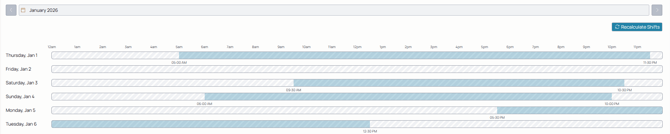
Use the expand on the day's shift to expand the shift data for a comprehensible breakdown

The My Expenses tab compiles your expenses across all tickets. The dropdown can separate external and internal, or serve you a list of both.
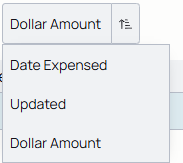
Change the list view of the expenses and sort either ascending or descending:
Use the Media Gallery tab to see all media you've attached to tickets.
Any of the following apply:
-
- Photos: Receipts for expenses, gauges of equipment, serial numbers for parts.
- Videos: Instructions, equipment in operation.
- PDFs: Guides, manuals, certifications, forms to be signed.
The Archived Work tab has logs and ticket activity that has been deleted. You can use the Reinstate log function to retrieve the log and restore it to the ticket.