
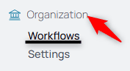
1. From your nav menu, select Workflows under Organization.
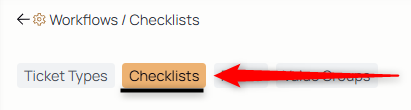
2. From the middle menu, select Checklists.
3. Select the Add Checklist icon.

4. Enter the name of the checklist in the Title field.
5. Enter additional details about this checklist in the Description dialog box.
6. Name the first step.
7. Add any additional information about the first step in the Details box.
8. Select the Add Step icon to add the second step to the checklist.
9. Name the second step.
10. Add any additional information about the first step in the Details box.
11. Do this as many times as necessary to include more steps.
12. Use the delete button to remove a step.
NOTE: Use the Edit button to add, delete, or edit steps within this checklist.

13. Click Submit to add the checklist to your organization. You can make checklists appear on tickets by attaching them to a ticket type. Learn How to Attach a Checklist to a Ticket Type here.