
There are two different types of work orders:
- Closed by Completion indicates that a work order is complete when the defined parameters for the job have been met. This gives a supervisor the option to automatically create one ticket to complete the work from the work order generation.
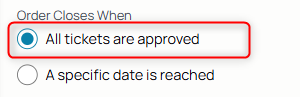
- Closed by Date indicates that a work order is complete when a set date has been reached, usually concluding a long period of time. This allows for the creation of multiple tickets attributed to one customer.
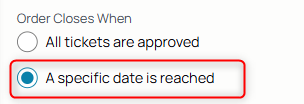
Take these steps to create Closed by Completion Tickets:
1. From the nav menu, select Work Orders.
2. Click the Create Work Order icon.

3. Click the Customer dropdown field.
4. Select the Customer.
5. Choose Close by Completion from the close parameters.
6. If you'd like to create a ticket immediately, click the toggle to pull up the ticket form.

7. Select the date for the ticket's execution if not today's date.
8. Choose from the ticket types.
9. Click the Assignee field.
10. Choose one or more agent to assign to the ticket.
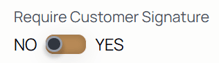
11. If the selected customer requires customer signatures enabled, choose yes or no from the toggle for that specific ticket.
12. Click Submit to generate the work order and the subsequent ticket.
Take these steps to create Closed by Date Work Orders:
1. From the nav menu, select Work Orders.
2. Click the Create Work Order icon.
3. Click the Customer dropdown field.
4. Select the Customer.
5. Choose Close by Completion from the close parameters.
6. Choose the date the work order closes. Note, it will automatically begin on today's date unless selected otherwise.
7. Click Submit to generate the open work order.
8. To create a ticket for that work order, use the Add Ticket icon on the work order.
Products / Services
For a ticket to include items like products and services, add them from the work order level under the Order Items section. NOTE: Only items that have been priced in that customer's pricebook from the catalog are populated in the product and service dropdown fields.

Add the items in the form of products and services to the work order and its tickets.