
Customer signatures are required or their requirements are disabled in 3 areas of Spearhead:
-
From the customer profile
-
From the ticket types
-
From the ticket itself
From the Customer Profile
Any ticket created for this customer will default to this selection, either enabled and required, or disabled.
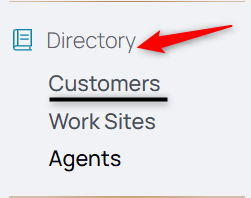
1. From the Nav menu, select the Customers under the Directory tab.
2. Choose the customer profile either from the list or using the search bar.
3. From the middle menu, choose Settings.

4. Move the toggle to Yes to require customer signatures for the customer.

5. Move the toggle to No so customer signatures aren't required for the customer.

7. Select Submit to apply the changes.
From the Ticket Type
Any ticket of this ticket type will default to this selection, either enabled and required, or disabled.
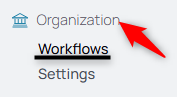
1. From your nav menu, access Workflows under Organization.
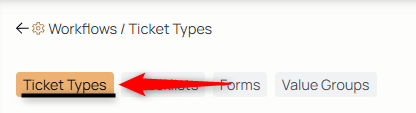
2. From the middle menu, select Ticket Types.
3. Select the ticket type you'd like to edit or create a new one.
To Edit:

To Create:

4. Move the toggle to Yes to require customer signatures for tickets of that ticket type.
5. Move the toggle to No so customer signatures aren't required for tickets of that ticket type.
7. Select Submit to apply the changes.
From the Ticket:
When a ticket is created, the toggle on the ticket create form indicates whether a customer signature is required for review submission or not.
This icon on the ticket preview indicates that a customer signature is required.


Clicking the Start Signature Request button initiates the signature capture.
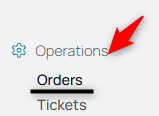
1. From the nav menu, select Orders under Operations.
2. Create a new work order or ticket from a work order.

3. To make it required for that ticket or disable the default signature requirements from either the ticket type or that customer's settings, move the toggle.

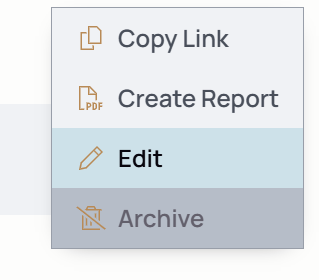
4. To edit a customer signature requirements, whether to enable or disable on a ticket, use the More menu to edit the ticket's details.

5. The customer signature section is in this part of the edit customer details page:

6. Make the changes and save the ticket.