
Expenses can be food, parts, gas, anything an agent buys while on the job.
1. From your nav menu or your agent dashboard, select the ticket.
2. Select the ticket from the list or use the search bar to find it.
3. From the menu in the right hand corner, select the Add Expense icon.

4. Select from the dropdown for expense type.
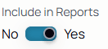
5. Use the toggle to select whether the expense is included in the ticket report, indicating if it can be visible to customers or anyone else who receives the report.

6. Add the amount of the expense.
7. Select the date field, use the date selector if it's not today's date.
8. Use the attachment icons to attach any picture or receipts for this expense log.
9. Select Submit to save the expense logs to the ticket and/or have it in reports.