
Follow these step by step instructions to add labor to a ticket.
1. From your nav menu or your agent dashboard, select the ticket.
2. Select the ticket from the list or use the search bar to find it.
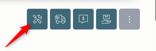
3. From the menu in the right hand corner, select the Add Work icon.
4. If you've got labor already logged on the ticket, it appears in blue on the sliders so you can't make duplicative travel and labor logs.

5. Choose the type of labor from the dropdown field. This attributes that labor to the service required on the work order or includes it as an add on for the ticket.
6. Select the date field if not today's date.
7. If the work spans more than one day, select the Multi-Day Log checkbox.
8. Use the slider or the time selector to choose the start time.
9. Use the slider or the time selector to choose the end time.
10. Include any additional details in the notes field or additional attachments like pictures or PDF documents.
11. Click Submit to add to the ticket's activity logs.