
Contract
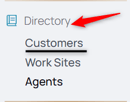
1. From the nav menu, select Customers under your Organization.
2. Use the search function or select the customer from the list.
3. From the middle menu, select Contract.

4. Edit the existing contract or select the Add Contract icon to create a new one.
5. Name the contract.
6. Select the date calendar icon to input the date. NOTE: If choosing a date other than the current date, this will impact shift billing for shifts from that date onwards.
7. Select from the dropdown to choose between shift and monthly billing.
8. Select the Add Rule icon.
9. Name the rule.
10. Select the Hours Threshold field and type the minimum that constitutes this type of day. Use additional rules to breakdown half days, travel days, etc. NOTE: Overtime is a separate rule in the next step.
11. Use the Add Overtime Rule to add overtime instructions.
12. Select the Hours After field. Anything after that interval are billed as overtime.
13. Click Save to submit the contract.