
As a backoffice user, assign billing rules based on customer's contracts. You can upload media attachments like the contract itself and notes as additional information under a customer profile.
1. From the nav menu, select Customers under Organization.
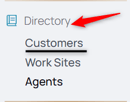
2. Select the customer from the list or use the search function to find them.
3. From the middle menu, select Contracts.

4. Select the Add Contract icon.
5. Enter the name of the contract in the Title field.
6. Select the date field. You can future or retroactively date the contract and the billing rules go into effect.
7. Select the date from the date grid.
8. Select the Billing Interval field. Choose between shift or monthly billing.
9. Add any extra details to the Notes field.
10. Use the attachment icons to upload the contract or other documents.
11. Select the Add rule icon to add billing rules to the contract form. These are reflected in user timesheets to payroll. NOTE that overtime comes in later and is not billed as one of these rules.
12. Title the rule.
13. Select the Hours Threshold field to type in what hours are required to bill at this rate.
14. Click the Add rule icon to add as many rules required by the contract.
15. Select the Add Overtime Rule icon to add the overtime rules.
16. Select the Additional Hours After field and enter how many hours are reached for the overtime threshold to apply.
17. Click Save to make the changes to the contract and enforce the billing rules for shifts that occur in the dates.