
To add products and services to tickets, you must first set up your Spearhead Pricebooks. Begin by using the Organization settings to set up units and then Catalogs to add the products and services. Follow these steps:
Add New Quantity Units to Organization
The quantity units you establish for your pricebooks will be used in several different ways.
In your Catalog, you can see the its title and abbreviation, as well as the distinction between singular and plural.

In the catalog for the item and service additions, you can see the units next to each item or service's price:
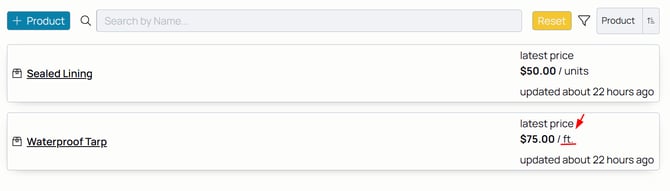
To set them up, follow these steps:
1. From your Spearhead homepage, use your Nav menu to select Catalogs under Offerings.
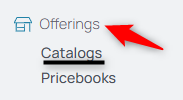
2. From the middle menu, select Quantity Units.
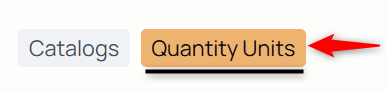
3. Select the Add New button.

4. Select the Unit title field and enter its title.
5. Pay attention to the parentheticals, which provide an example of the unit in its appropriate usage.
6. Select the Abbreviation field and enter the shortened abbreviation for the unit.
7. Select the Singular unit label field and enter the title for one unit.
8. Select the Plural unit label and enter the title for more than one unit.
9. Click Submit and the quantity unit and its labels are now in your Pricebooks and Catalogs.
Add New Products and/or Services to Catalog
Once you've added your units, you can add products and services to your organization's catalog.
1. From your Nav menu, select Catalogs under Organization.
2. Choose the default catalog or a specific catalog you'd like to modify or add products/services to.
3. Click the Add Product button

4. Select the Product Title field and enter the name.
5. Click the Description field and provide a detailed description for the product.
6. Select Submit to add the product to the catalog.
7. Select Services.
8. Click the Add Service button.

9. Select the Service Title field and enter the name.
10. Click the Description field and provide a detailed description for the service.
11. Select Submit to add the service to the catalog.
Price Items and Products in Pricebooks
Products and services cannot be added to work orders or tickets unless they are priced in a pricebook that that customer is using.
1. From your nav menu, select Pricebooks under Offerings.
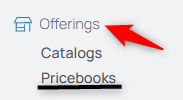
2. Select the Pricebook to edit.
3. Select Products from the middle menu.
4. Select the item to edit the price. NOTE: If a product was set up with more than one quantity unit, you can set up unique prices for each quantity unit, like if a length of rope is priced differently per feet than it is per yard.
5. Type the price in the field.
6. Use the calendar to select its price effective date.
7. Click checkmark to save the price.
8. From the products tab, select the product to price.
9. Add pricing for the product and its respective quantity unit.
10. Use the calendar to select its effective date.
11. Save the changes.
12. Select Services from the middle menu.
13. Choose the Service to price.
14. Price it per hour.
15. Use the calendar to select its effective date.
16. Save the changes.