
From a Ticket
1. Select the Tickets from the Spearhead Nav menu.
2. Scroll through or search the tickets for the one you'd like to view.
3. Under the entries, you'll see the agent's name above their comments or media contributions. Select the agent's name.
4. From the top menu under the agent's profile, select Time Sheet.
5. Choose between Billing or Shift under the Billing Interval dropdown.
5a. Shift: Allows you to select shifts from any specific date range.
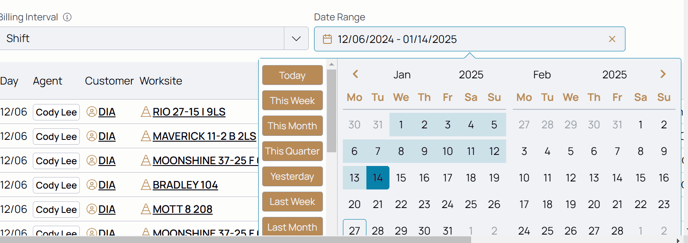
5b. Month: Allows you to select monthly views of timesheets.
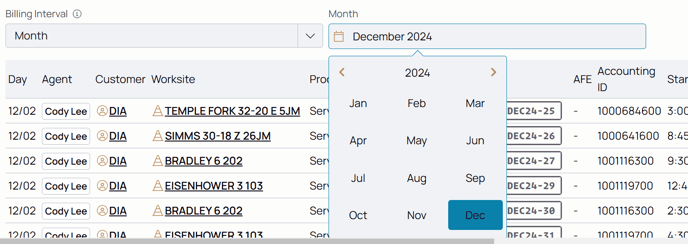
5. Select one of the two then select either the date ranges or the month.
6. You'll now be able to see the agent's time sheets entries for those dates or months.
From a Customer Profile
1. Select Customers from the Spearhead Nav menu.
2. Scroll through or search the customers for the one you'd like to view.
3. From the top menu under the agent's profile, select Time Sheet.
4. Choose between Billing or Shift under the Billing Interval dropdown.
4a. Shift: Allows you to select shifts from any specific date range.
4b. Month: Allows you to select monthly views of timesheets.
5. Select one of the two then select either the date ranges or the month.
6. You'll now be able to see the agent's time sheets entries for those dates or months.
From an Agent Profile
1. Select Agents from the Spearhead Nav menu.
2. Scroll through or search the agents for the one you'd like to view.
3. From the top menu under the agent's profile, select Time Sheet.
4. Choose between Billing or Shift under the Billing Interval dropdown.
4a. Shift: Allows you to select shifts from any specific date range.
4b. Month: Allows you to select monthly views of timesheets.
5. Select one of the two then select either the date ranges or the month.
6. You'll now be able to see the agent's time sheets entries for those dates or months.