
From the navigation menu (the nav menu), you'll see several icons that represent tabs for easy access to different parts of Spearhead. They may look different (minus an icon) depending on your role.
Backoffice navigation menu. Company logo at the top. Click this at any point to go back to My Dashboard. Italics represent areas only visible to backoffice users.

Use the collapse icon to expand the full navigation menu.



From mobile, the company logo is in the middle. Click it to expand the full options of the navigation menu.
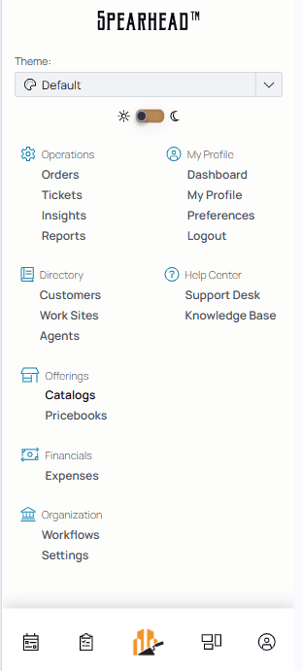
The icons take agents to the most frequently used parts of Spearhead.
 For Work Orders
 For Tickets
 For their Employee Dashboard
 For their Employee Profile

Operations, containing:
- Orders are how Spearhead organizes tasks that are or will be attributed to customers and performed by agents. This sorting system simplifies the distribution and sorting of work from customers to agent.
-
- There are two kinds of work orders, differentiated by their parameters for completion:
1. Closed by Completion indicates that a work order is complete when the defined parameters for the job have been met. Usually these are one-off tickets for single task jobs.
2. Closed by Date indicates that a work order is complete when a set date has been reached, usually concluding a long period of time.
- There are two kinds of work orders, differentiated by their parameters for completion:
-
- Tickets: Tasks created for agents issued after a request for work from the customer. Agents are assigned tickets and they add work (labor, mileage, and expenses) and submit the ticket for review.
- Insights: Analytics based on data within Spearhead.
- Reports: Generated reports by the user or users to view and download.

Directory, containing:
- Customers: List of customers of the organization and their profiles.
- Work Sites: List of worksites and their data (latitude and longitude, county, tickets, etc.).
- Agents: List of agents of the Spearhead organization and their profiles.
- Agent Tiers: Different classifications of workers within Spearhead to differentiate for billing and job purposes.

Offerings, containing:
- Catalogs: List of products and services contained within one or multiple catalogs.
- Pricebooks: One universal or multiple pricebooks to manage past, present, and future prices of goods and services managed by Spearhead. Including customers using each pricebook and agent tiers covered by said pricebook.

Financials, containing:
- Expenses: List of expenses based on spending on tickets per jobs, separated by internal and external expenses.

Organization, containing:
Workflows: Add and manage tools for tickets and efficiency from the Workflows tab.-
- Ticket Types: Shorthand types for common types of jobs to generate tickets.
- Checklists: To attach to ticket types for execution during the completion of a ticket.
- Forms: Custom forms to input or maintain for their use within Spearhead.
- Value Groups: Entities in custom forms to sort and delete duplicative or incorrect user-generated entries.
- Settings: Use this to edit customer and organization settings, like invoice settings or the onboarding checklist.
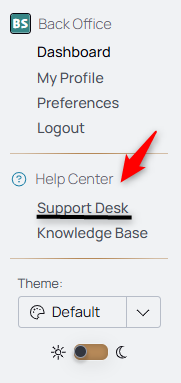
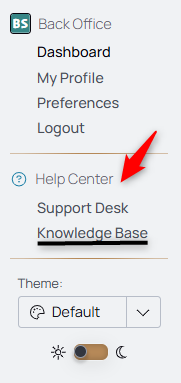
Expand the Profile from the navigation menu to see Support Desk and Knowledge Base for Help.
Preferences is where you'll find notification preferences and user settings for in-app or out of app usage.
Use Support Desk to access the chat function to ask for help.
Use the Knowledge Base to access documentation repository for guides, how-tos, and references for navigating Spearhead.
Add Functions:
Depending on where you are in Spearhead, use add buttons in the right hand corner.
Use the Add Items button on work orders to add products or services to a work order.
Use the Add a Work Order button to pull up the work order -> ticket generation form.

Use the Add a Pricebooks button to pull up the pricebooks generation form.

Use the Add an Agent button to pull up the agent profile generation form.

Use the Add a Customer button to pull up the customer profile generation form.

Use the Add a Contact button to add a employee contact to an organization or customer's profile.

Use the Edit buttons to edit profiles, tickets, and organizations to make updates.

Use the Save buttons to enact changes or new fields populated in forms.

Use the Archive button to delete logs.

Use the flag to expand the search bar to make detailed searches within lists.

Change the order of lists to ascending view.

Change the order of lists to descending view.

Use the sort functions to change the view sorting of lists.

Table View to view the results in ticket form.
Card View to view the results in list form.
Ticket Calendar View to view the results by dates.
Use the Ellipsis icon to expand more options from a menu.

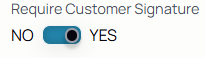
Use the Toggle to go between options on submissions and profiles.
Use the Slider to manually adjust times on time entries on activity logs.

Two colors differentiate between labor and travel on the slider and the slider prohibits you from billing for both simultaneously:

Under Profiles and Customers, especially when in mobile view, there is a middle menu that has more tabs. Scroll sideways under the agent or customer profile to see all the options:

FROM A TICKET
Use the icons on the right to add activity to a ticket. Those icons are then used in the activity logs.

 This icon refers to labor.
 This icon refers to mileage and travel.
 This icon refers to travel expenses.
 This icon refers to invoicing.
Tickets can have customer signature requirements on them. When it's red, it means the work on the ticket required a signature and it hasn't been added to the ticket.

When a signature has been successfully added by the on-site customer, the signature icon is no longer red.

This icon refers to a work site that was created during the ticket generation phase and has not been created as an official site of the customer and remains an unconfirmed worksite until it is either saved or merged with a customer's preexisting worksite. Learn more here.

